Image: Unsplash, used under the Unsplash License.
Your AI policy can say "no client data in AI tools" all it likes. If the browser on every laptop has an assistant in the toolbar that can read the open tab, the policy is one click away from being broken. That's true of Chrome, which ships Gemini in Chrome, and of Edge, which ships Copilot in the side pane.
Both can be controlled with managed browser policies. Here's the list we'd hand to whoever runs your machines, with the exact names, values and registry paths, and a check for each one.
Evergreen checklist, not a news item. Policy names, values and defaults checked against Google's Chrome Enterprise policy list, Google's admin help and Microsoft Learn on October 26, 2026.
Before you start
- Decide what you're blocking. Turning the assistant off entirely is one decision. Stopping it from reading pages is another. Edge lets you do the second without the first.
- Use managed policy, not flags. Flags are per user and they come back. In an r/chrome thread on removing "Ask Gemini" from Chrome on iPhone, user synd_rain wrote: "Mine also reappears after a few months. Gemini flags don't work for me." User TheSpixxyQ put it plainly: "Flags are temporary. If it's not in regular settings, you can't permanently remove it. You're just postponing it with flags."
- Know how you push policy. Google publishes a Windows registry value and a Mac preference name for each Chrome policy below, so Group Policy, a registry file, a Mac configuration profile or a device management tool such as Intune can carry them. The Google Admin console works too, and one setting only works there.
https://www.reddit.com/r/chrome/comments/1x2f86c/
Chrome: the checklist
1. Set GeminiSettings to 1
This is the main switch. Google's policy list describes it as "This setting allows Gemini app integrations," with two values: "0 = Gemini integration will be available for users" and "1 = Gemini integration will not be available for users."
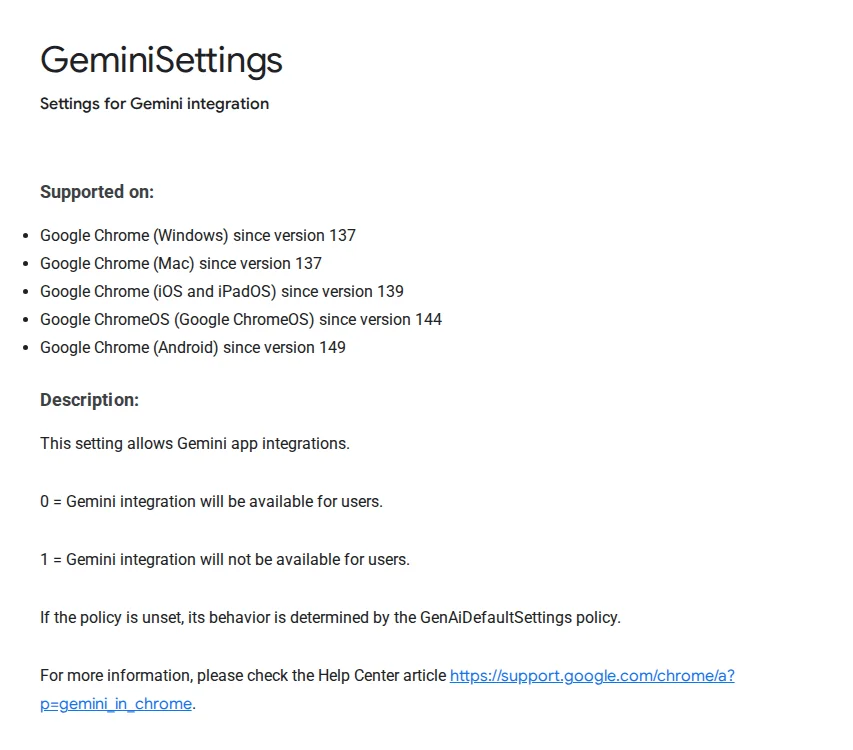
Screenshot: Chrome Enterprise policy list, GeminiSettings. Captured October 26, 2026.
| Where | What to set |
|---|---|
| Windows registry | Software\Policies\Google\Chrome\GeminiSettings, type REG_DWORD, value 1 |
| Mac | preference name GeminiSettings, value 1 |
| Supported versions | Chrome on Windows and Mac from 137, iOS and iPadOS from 139, ChromeOS from 144, Android from 149 |
No restart is needed: Google says the policy is "Applied to browser without restart," at the profile level.
If you leave it unset, Google says "its behavior is determined by the GenAiDefaultSettings policy." That's item 3.
2. Set AIModeSettings to 1 if you also want AI Mode out of the address bar
Gemini in Chrome and AI Mode are separate policies. AIModeSettings "controls Google's AI Mode integrations in the address bar and the New Tab page search box," and value 1 means "The feature will not be available to users." It only applies when Google is the default search engine. Supported from Chrome 138.
We'd set this one too if your concern is staff pasting client text into a search box that now answers with AI. If your concern is only the page-reading assistant, item 1 is enough.
3. If you have Google Workspace, set the GenAI default in the Admin console
GenAiDefaultSettings is one setting that sets the default for several AI features at once. Google's policy description names "Gemini in Chrome, Google Lens, and AI Mode" among them. Its three values:
- 0: allow, "while allowing Google to use relevant data to improve its AI models," which Google says "may also be reviewed by humans."
- 1: allow, without improving models on users' content. Google says 1 is the default "for Enterprise users managed by Google Admin console."
- 2: don't allow.
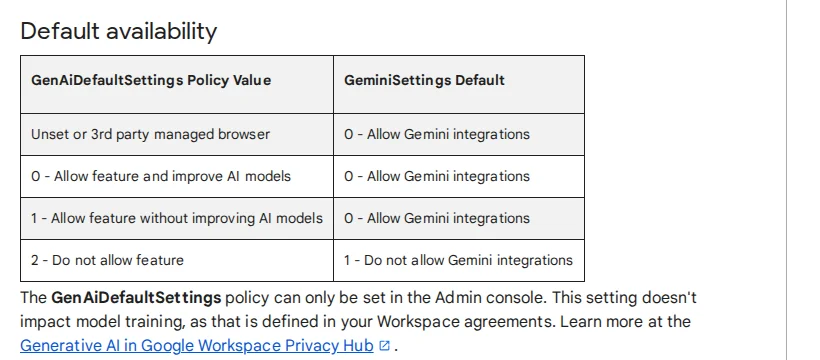
Screenshot: Gemini in Chrome, Chrome Enterprise and Education Help, Default availability. Captured October 26, 2026.
The catch: "The GenAiDefaultSettings policy can only be set in the Admin console." If you manage Chrome through Group Policy or Intune alone, you can't use this one. Set item 1 and item 2 explicitly instead, which is what we'd do anyway, because explicit beats inherited when someone audits it later.
In the Admin console, Google's path for Gemini in Chrome is Devices > Chrome > Settings, then Generative AI > Gemini integrations. Google also says access "requires both to be enabled": the Gemini app setting for your users and GeminiSettings. Turning off either one turns the feature off. Changes "can take up to 24 hours to apply for everyone."
4. If you allow Gemini, decide on auto browse separately
If you keep Gemini in Chrome on, there's a second question: can it act on pages for the user? Google's admin help says auto browse "is currently off by default for managed users" and is enabled with GeminiActOnWebSettings. Value 0 or unset allows it, 1 blocks it. The policy "has no effect when the Gemini app is disabled," so if you did item 1, you're done here.
We'd keep it off for any team handling client accounts. Our browser agents policy covers why letting an agent click around logged-in sessions needs its own rule.
5. Check it applied
Open chrome://policy on a managed machine. Google's help says to browse there to see the policies in force. Look for GeminiSettings with the value 1. If you set something in both Group Policy and the registry, Google says "the policy takes precedence," so a registry value that seems ignored usually means GPO set something else.
Edge: the checklist
Microsoft splits Copilot in Edge into "show the button" and "let it read the page". You want the second one first.
6. Set EdgeEntraCopilotPageContext to 0
This is the one that matters for data. Microsoft says it "controls whether Copilot in the Microsoft Edge side pane can access page content, browsing history, and video transcript."
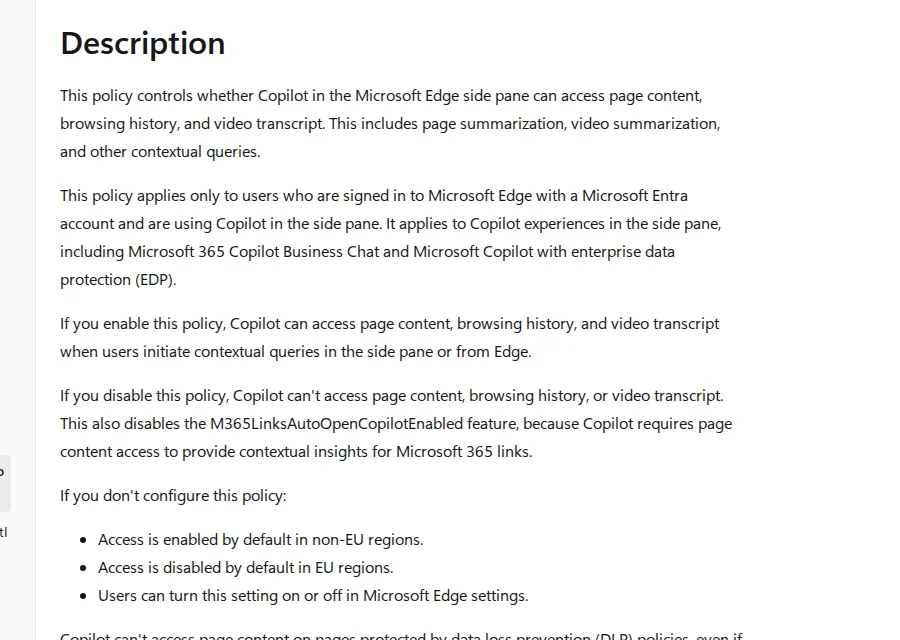
Screenshot: Microsoft Learn, EdgeEntraCopilotPageContext policy. Captured October 26, 2026.
On Windows it lives at SOFTWARE\Policies\Microsoft\Edge, value name EdgeEntraCopilotPageContext, REG_DWORD, 0 to disable. It covers users "signed in to Microsoft Edge with a Microsoft Entra account," including Microsoft 365 Copilot Business Chat and Copilot with enterprise data protection.
The default is the part to check. If unset, "Access is enabled by default in non-EU regions" and disabled in EU regions, and users can change it in Edge settings, so a US or Asia-based team that has never set this is running with page access on. Disabling it also turns off M365LinksAutoOpenCopilotEnabled, because that feature needs page access.
There's an older policy, CopilotPageContext, that covers Entra ID profiles but not Microsoft account (MSA) profiles, and Microsoft says it "doesn't control access for Copilot with enterprise data protection (EDP)." Set EdgeEntraCopilotPageContext as well; setting only the older one leaves Copilot with EDP uncovered.
7. Set Microsoft365CopilotChatIconEnabled to 0 to remove the toolbar button
If you want the Copilot button gone, this is the policy. Microsoft says that for users in an Entra ID Edge profile, when it's disabled "Copilot doesn't appear in the toolbar." Unset, it shows and users can toggle it. Registry: same SOFTWARE\Policies\Microsoft\Edge path, REG_DWORD. Supported from Edge 139 on Windows and Mac.
Don't rely on hiding the sidebar for this. Microsoft's HubsSidebarEnabled page now says that "As of Microsoft Edge version 141, the Microsoft365CopilotChatIconEnabled policy is the only means of controlling the display of Copilot in the toolbar." HubsSidebarEnabled set to disabled still hides the whole sidebar ("the Sidebar is never shown"), which you may want for other reasons.
8. Check it applied
Microsoft's guidance: "open Microsoft Edge and go to edge://policy to see all policies that are applied." Find EdgeEntraCopilotPageContext in that list and confirm it shows the disabled value you pushed.
What these policies don't cover
- Personal browser profiles. Both of Microsoft's page-context policies are written for Entra profiles. In the Microsoft pages we read, we didn't find an Edge policy that covers Copilot for a personal Microsoft account profile on a managed machine. If staff browse work sites in a personal profile, fix that first.
- Personal Google accounts in Chrome. GeminiSettings applies "at Chrome profile level" on managed browsers. Someone signed into a personal profile on an unmanaged laptop isn't covered by anything here. Our Personal Intelligence comparison covers what a personal Google account can connect.
- Other AI tools in a browser tab. These policies switch off the built-in assistants. ChatGPT, Claude and the rest in a tab are a different control: see how to block ChatGPT at work, or allow only your workspace.
- Phones. GeminiSettings is listed for iOS from 139 and Android from 149, but your mobile management has to push it. Most of the r/chrome threads we found about removing Gemini were about phones, which tells you where the button gets noticed.
What we checked, and what we didn't
On October 26, 2026 we opened Google's Chrome Enterprise policy list entry for GeminiSettings in a browser and read the rendered entry (the page builds its content with JavaScript), read the Chromium source definitions for GeminiSettings, GeminiActOnWebSettings, AIModeSettings and GenAiDefaultSettings, Google's Gemini in Chrome admin help, Google's help on chrome://policy and on registry precedence, and Microsoft Learn's pages for EdgeEntraCopilotPageContext, CopilotPageContext, Microsoft365CopilotChatIconEnabled and HubsSidebarEnabled.
We did not push these policies to a test fleet. The values and paths above are as Google and Microsoft document them; check chrome://policy and edge://policy on one machine before you roll them out to everyone. We also didn't test Intune's settings catalog names for each policy, which can differ from the GPO display names.
Put the final list in your shadow AI policy so the rule and the setting say the same thing.